Remove a Post from a Category
How to Edit a Post and Manage Categories
Learn how to remove a post from a category while keeping it visible on a specific page in platforms like WordPress or Joomla. Follow these simple steps to manage your content efficiently without losing visibility on key pages.
Removing Category Pages For WordPress
Related Resources & Templates
Customize WordPress Category Page
Remove Category Post (you are here)
Keywords for Animated Subscribe Button
Meta Optimization
How to Create a Blog Post
Button Call to Action Subscribe
Animated Spinning Book
Green Screens Action Background
Optimize WordPress Categories
Sacred Categories
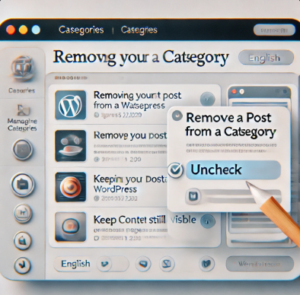
To remove a post from a category but keep it visible on a page, follow these steps depending on your platform (e.g., WordPress, Joomla, etc.):
1. Edit the Post
-
- Go to your WordPress dashboard.
- Navigate to Posts > All Posts and find the post you want to modify.
- Click Edit.
2. Remove Category
-
-
- In the post editor, look at the right-hand sidebar under the Categories section.
- Uncheck the category (or categories) that you want to remove.
- Click Update to save your changes.
3. Keep the Post on a Specific Page
- If the post is manually added to a page (such as through a block, shortcode, or custom layout), it will remain visible on that page.
- To ensure the post appears where you want, use a page builder or add the post’s URL to the page content manually.
4. For Other Platforms (General Steps)
- Unassign the Category: In your post editor, remove the assigned categories or tags.
- Ensure It’s Linked on the Page: Manually insert the post URL or use any tools available on your platform to embed the post on a specific page.
Removing a post from a category will prevent it from showing up in category archives, but it will still be accessible via direct links or any dedicated pages it’s added to. (includes Joomia)
Continue Your Journey
Deepen your understanding and explore the next step in your path.
 20
20 934
934 513
513
 90
90